Access Rules
Access Rules control what the Cirra AI MCP server may read and write in your connected Salesforce organizations. They let you tighten access far beyond the broad data categories — down to a single object or field, and scoped to a particular environment type, connection, role, or individual user.
These permissions apply on top of (not instead of) the permissions configured in Salesforce. The Cirra AI MCP server can only ever do something if both Salesforce and your Access Rules allow it — and when several rules apply, the strictest one always wins.
You manage them on the Access Rules page in the MCP Server settings. The category-level rules can also be viewed and edited directly from the org cards on the Salesforce Organizations page — see Org-level access settings below.
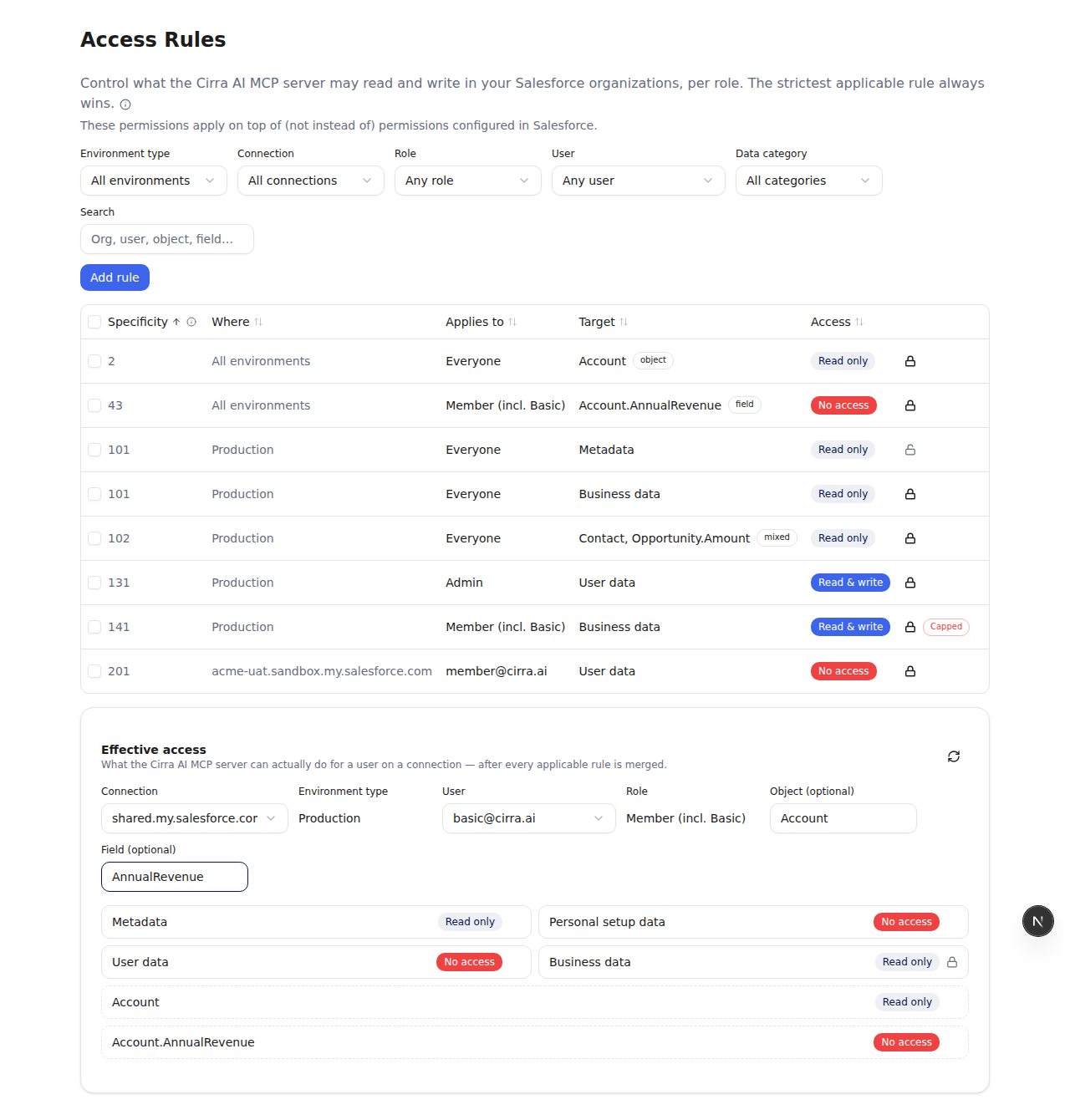
What a rule is made of
Every rule answers four questions:
- Where it applies — an environment type (Production, Sandbox, Developer, Scratch, or All environments) and, optionally, one specific connection (a single connected org). Leave the connection unset and the rule covers every org of that environment type.
- Who it applies to — a role (for example Everyone, Admin, or Member) and, optionally, one specific user. The role and user axes appear only for Team accounts; a personal account has no roles or other users, so those columns are hidden.
- What it targets — one of:
- a whole data category: Metadata, User data, Personal setup data, or Business data;
- a specific object (for example
Account); - a specific field (for example
Account.AnnualRevenue).
- Access level — No access, Read only, or Read & write.
The rules table
Each rule is a row, with these columns:
- Specificity — how narrowly the rule is scoped (see Precedence below). The table sorts by specificity by default, broadest first.
- Where — the environment type or the specific connection.
- Applies to — the role and/or user (Team accounts only).
- Target — the data category, object, or field, with a small badge
(
object,field, ormixedwhen a rule covers more than one). - Access — the level granted, shown as Read only, Read & write, or No access.
- A lock icon shows whether more specific rules may relax this one (see below). A Capped badge means a broader locked rule is holding this rule down, so it is not granting everything it otherwise would.
Use the Environment type, Connection, Role, User, and Data category filters, or the Search box (which matches connection names and object/field names), to narrow a long list. Select one or more rows to edit or delete them in bulk.
If no rule matches a given object or field, its access simply follows the broader category (and, ultimately, Salesforce) — there is no implicit denial.
How rules combine (precedence)
The guiding principle is simple: the strictest applicable rule always wins.
By default every rule acts as a ceiling — nothing more specific may exceed it. So a broad "Business data — Read only" rule caps a narrower "Account — Read & write" rule down to Read only.
When you do want a narrower rule to grant more than a broader one, turn on More specific rules can relax this on the broader rule. With that enabled, a more specific rule (higher specificity) may widen access above the broader rule's level. The lock icon in the table shows, at a glance, which rules can be relaxed and which cannot. A rule that would grant more but is held down by a broader locked rule is marked Capped.
Specificity, from broadest to narrowest, increases as a rule targets:
- a narrower scope — All environments → an environment type → a single connection;
- a narrower audience — Everyone → a role → a specific user;
- a narrower target — a data category → an object → a field.
Because everything is layered on top of Salesforce, the access the server actually gets for any object or field is the most restrictive of: what the connected Salesforce user may do, and every Access Rule that applies.
Creating a rule
Click Add rule and fill in the dialog:
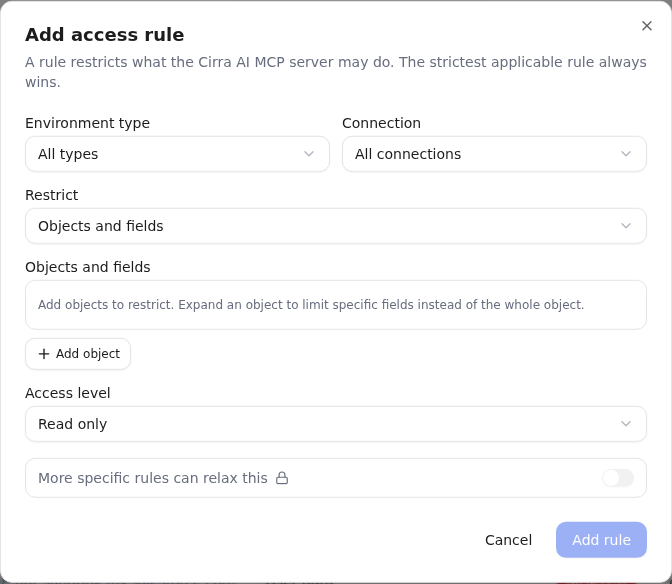
- Role and User — who the rule applies to (Team accounts only).
- Environment type and Connection — where it applies.
- Restrict — choose whether the rule targets a data category or objects and fields. For objects and fields, add one or more objects, and expand an object to limit specific fields instead of the whole object.
- Data category — shown when you are restricting a category.
- Access level — No access, Read only, or Read & write.
- More specific rules can relax this — leave off to make the rule a hard ceiling; turn on to let narrower rules grant more. This toggle is locked in cases where relaxing would not make sense.
Edit or remove an existing rule from the Actions column of the table.
Previewing effective access
Rules interact, so the page includes an Effective access panel that shows exactly what the Cirra AI MCP server can do after every applicable rule is merged — no need to work it out by hand.
Pick a Connection (its environment type is filled in for you) and, optionally, a User (its role is derived) to see the resulting access for each of the four data categories. Add an Object — and optionally a Field — to resolve access all the way down to that specific target.
Leave the User or Connection blank to see the access that applies when no special rule exists for that person or org. Use the refresh control to re-run the preview after changing rules.
In the example above, a broad Business data — Read only rule and a narrower Account.AnnualRevenue — No access rule combine so that the member can read Account in general but not its Annual Revenue field — the stricter field rule wins.
Org-level access settings
The Salesforce Organizations page offers an alternative way to view and edit the data category rules: a settings (gear) icon on each org category header (Production, Sandbox, Developer, Scratch) and on each individual org card. Rules created here appear in the Access Rules table, and rules created in the table are reflected here — they are the same rules, presented per org.
This view is limited to the four data categories. To scope a rule to a role or user, or to target individual objects and fields, use the Add rule dialog instead.
Access levels can be separately set for each category of (meta)data:
- Metadata: all configuration, such as objects, fields, layouts, permission sets, profiles etc.
- User Data: users, groups, queues etc.
- Personal Setup Data: setup controlled by individual users, such as reports and email templates
- Business Data: Leads, Accounts, Cases etc.
For each of these, access can be set to:
- None: (meta)data can neither be read nor modified
- Read Only: (meta)data can be read, but not modified
- Read and Write: full access
Access can be restricted at two levels:
- The category of Salesforce orgs: production, sandbox, developer or scratch
- Each individual org
To configure these settings, click on the settings icon. This is available for each org category (Production, Sandbox etc) as well as the card for each individual org.
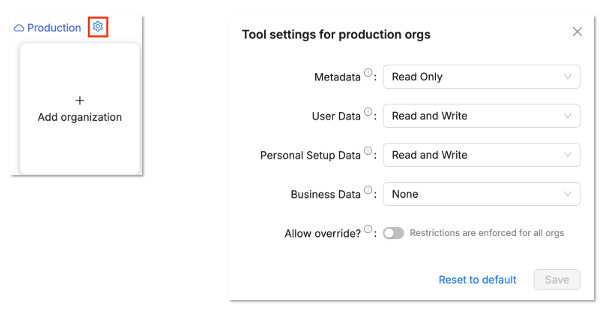
By default, individual org level settings can only be set to be more restrictive than category level settings. Less restrictive settings are disabled.
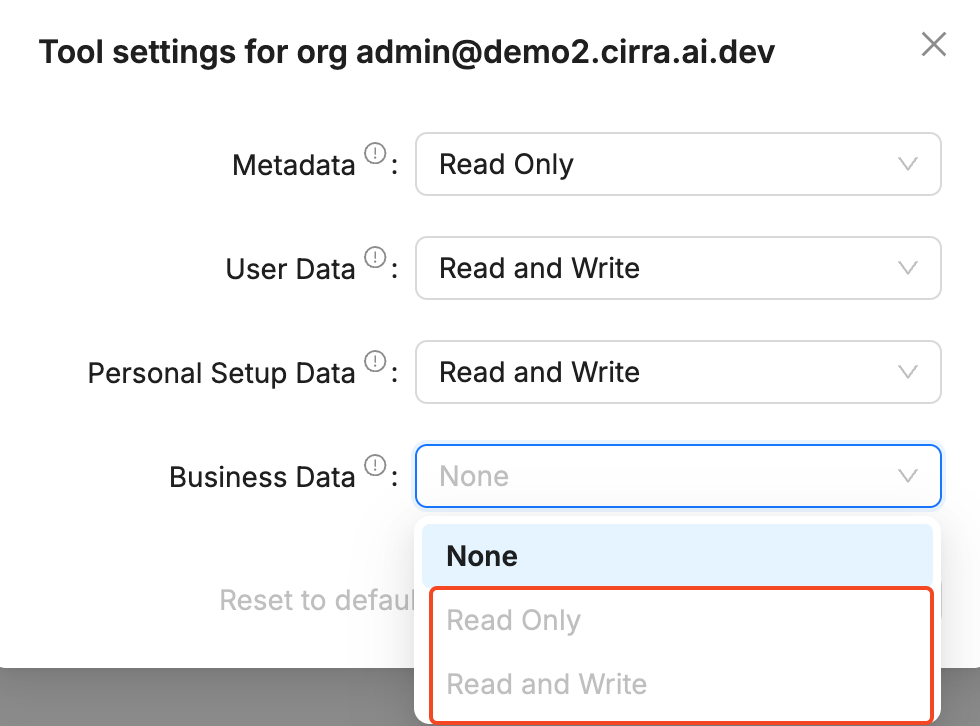
However, if you select the Allow override? option then individual orgs can relax the category-level settings. This is the same setting as More specific rules can relax this in the Access Rules table.
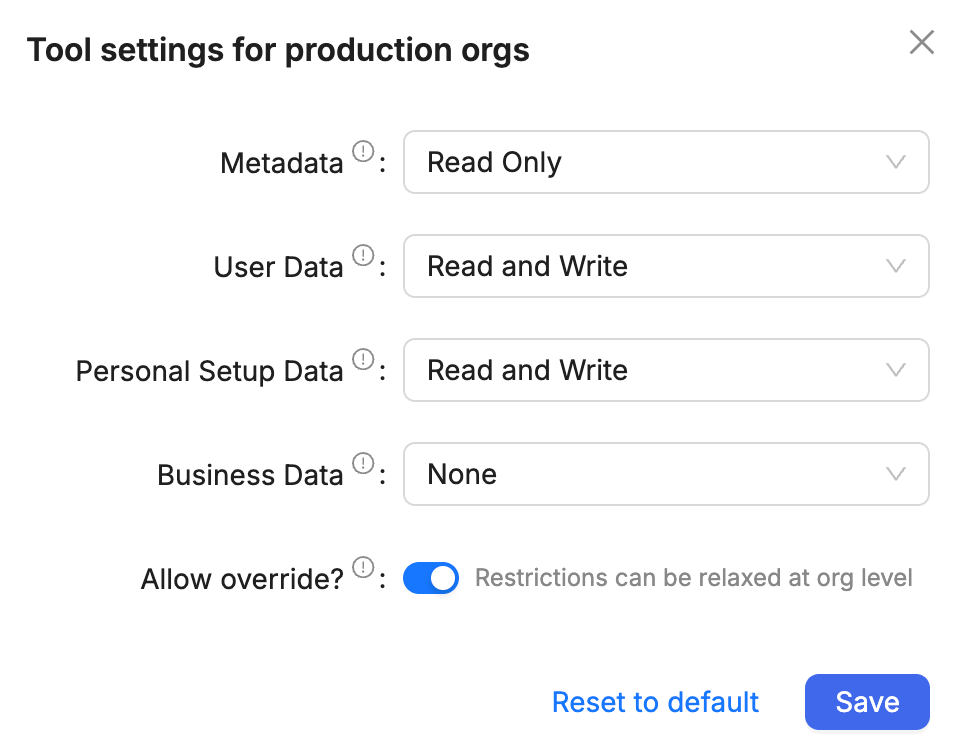
For Team accounts, category levels can only be set by owners or admins of the team.
To summarize, a user will have access to (meta)data in an org only if all of the following are true:
- The user who connected the org (via OAuth) has access
- The org category settings allow access
- Unless Allow override? is enabled
- The individual org settings allow access
- Any other applicable Access Rules allow access