Setting Up
Setup involves the following steps:
- Logging into (or creating) your Cirra AI account
- Connecting Cirra AI to one or more Salesforce orgs
- Connecting your MCP client (such as Claude.ai) to the Cirra AI MCP Server
Verify that your AI subscription includes MCP server support. For Claude that currently requires at least a Pro plan.
Check https://modelcontextprotocol.io/clients for an updated list of clients that support MCP.
Logging in to Cirra AI
As a first step, create a new Cirra AI account, or log in with your existing credentials.
Creating a new Cirra AI account
If you do not have a Cirra AI account yet, you can sign up for a free trial at https://cirra.ai/free-trial.
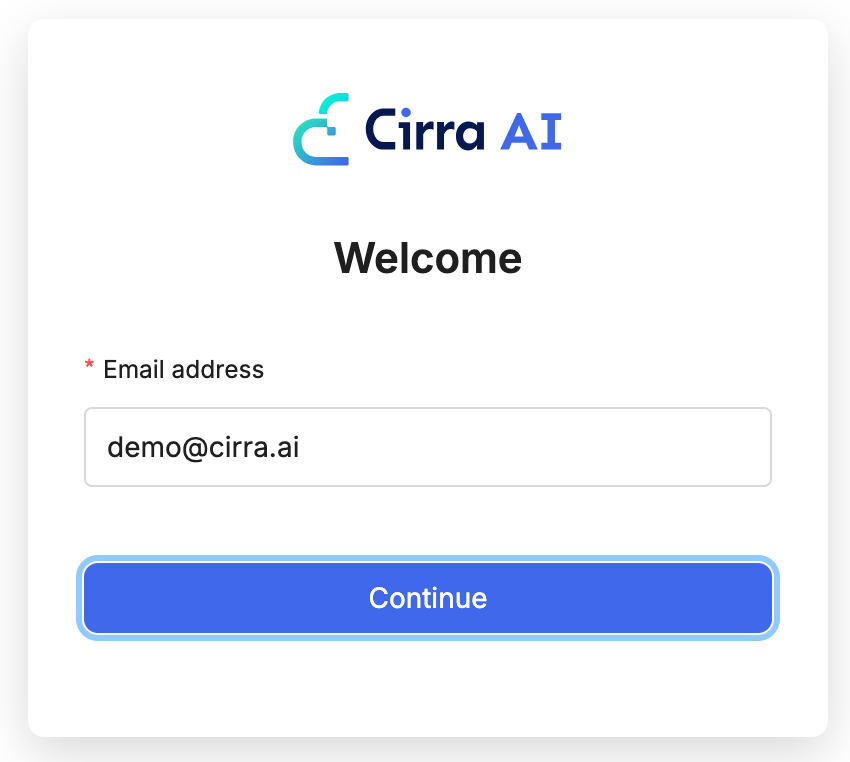
- Enter your email and hit Continue
Then enter a new username and password, or click Continue with Google:
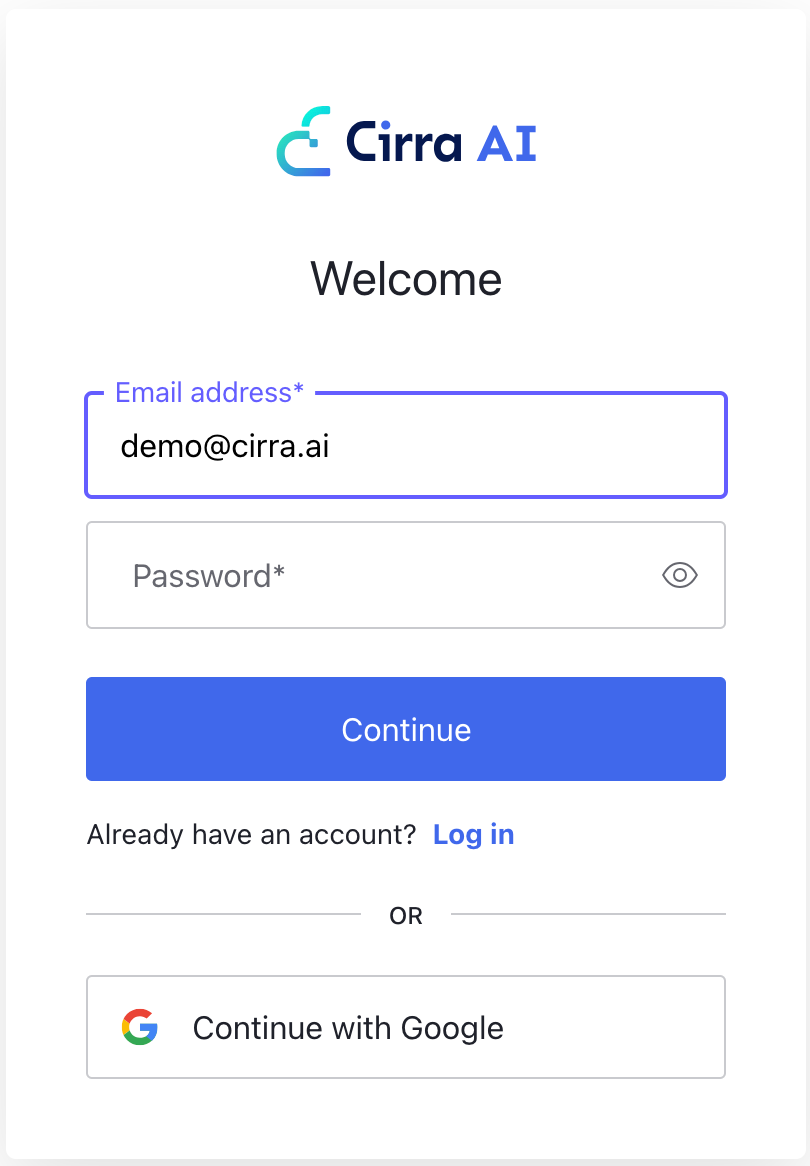
Verifying your email address
If you create a new account with a username/password, you will be asked to verify your email address as part of signing up. The signup screen prompts you for a verification code.
Look for an email with subject "Cirra AI || Please verify your identity" from Cirra AI Support, containing a 6-digit code. Enter the code on the signup screen to complete your registration — you stay in the signup flow the whole time, with no links to click.
The code expires after 15 minutes. If it has expired, or the email has not arrived (check your spam folder), use the Resend option on the signup screen to get a fresh code.
If you signed up earlier and received a verification email with a Verify your account button instead, clicking that button still works.
You can then proceed to the next step, Connecting your Salesforce orgs.
Logging in with an existing Cirra AI account
If you already have a Cirra AI account, enter your existing credentials and click Continue
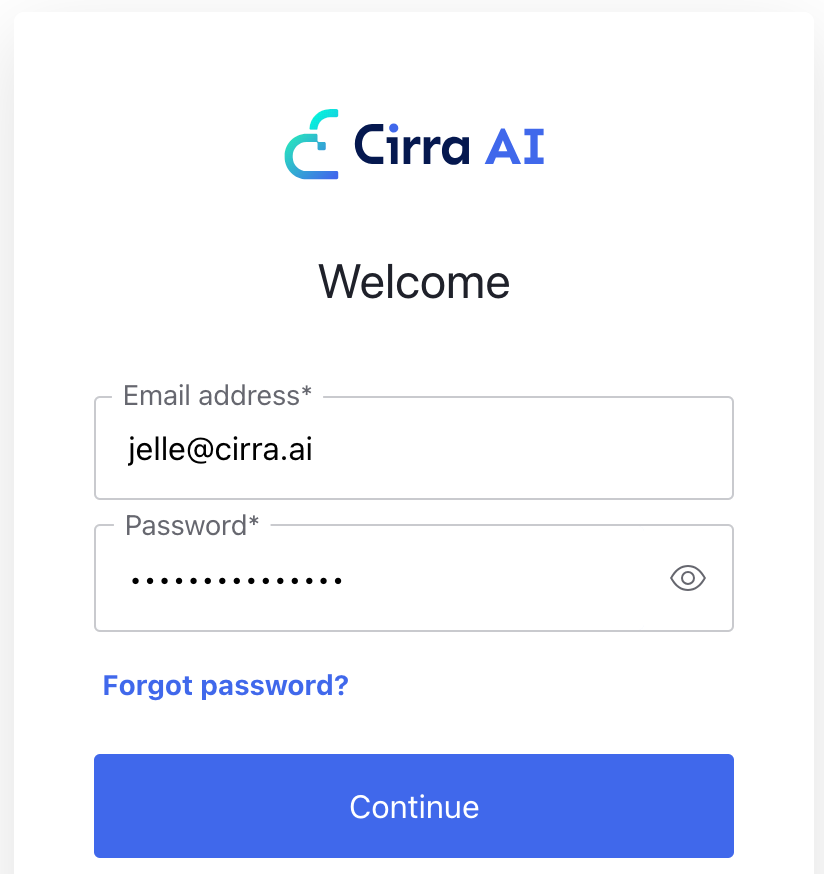
Selecting a team
If an administrator has added you to one or more teams, you will see a dropdown to select the team you want to use. See Managing teams for more details.