Connecting to your AI client
The final step is to connect the Cirra AI MCP Server to your AI client.
Choose your preferred client below for specific instructions.
- Claude AI
- Claude Desktop
- ChatGPT
- OpenAI Codex
- VS Code
- Cursor
- Cline
- Gemini Enterprise
- Other
Claude AI (Web)
-
Open the "Connectors" settings
Navigate to https://claude.ai/settings/connectors
-
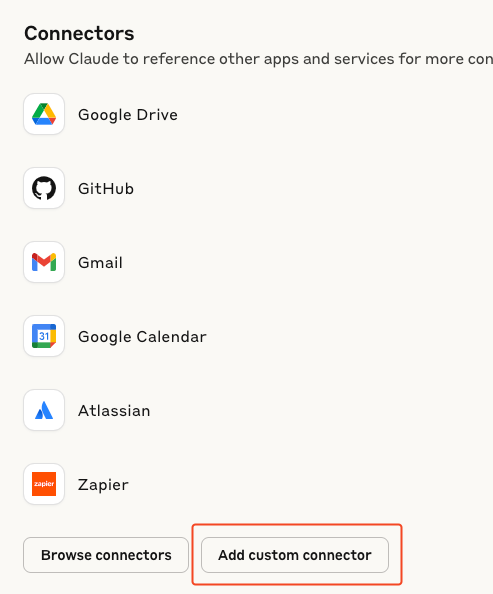
Click "Add custom connector"
-
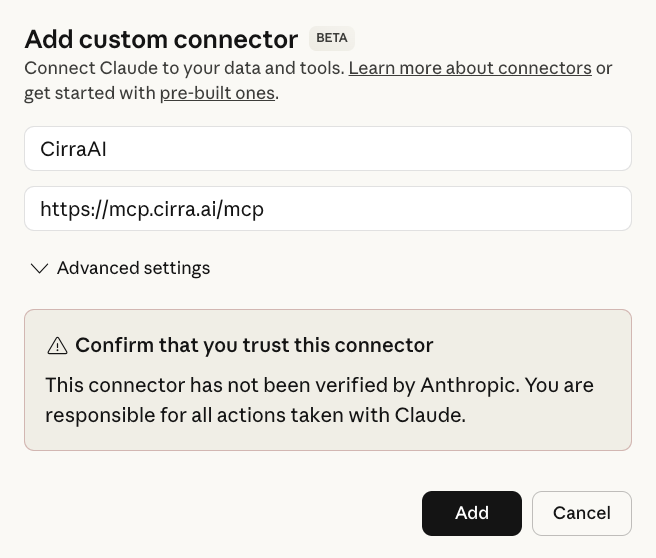
Enter the following details:
- Name: Cirra AI
- Remote MCP Server URL: https://mcp.cirra.ai/mcp
Then click Add
-
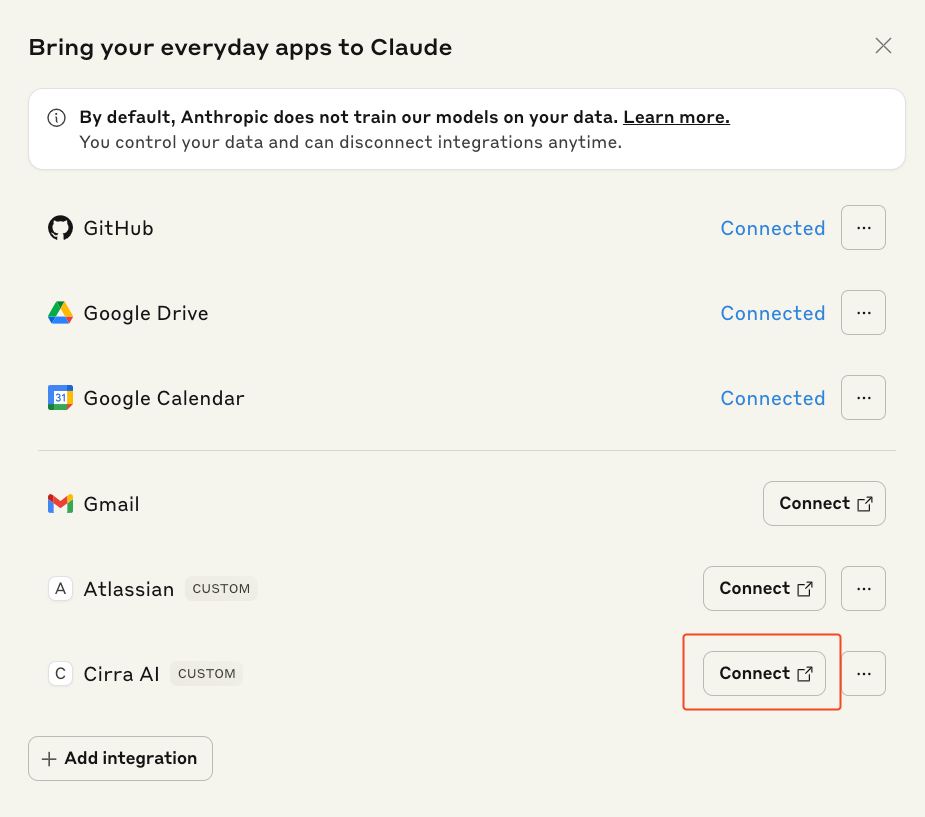
Click Connect to connect Claude to the Cirra AI MCP server
If Claude is unavailable or behaving unexpectedly, check https://status.claude.com/.
Claude Desktop
-
Open Claude Desktop Settings
- On macOS: Claude → Settings
- On Windows: File → Settings
-
Navigate to the Connectors section
-
Click "Add custom connector"
-
Enter the following details:
- Name: Cirra AI
- Remote MCP Server URL: https://mcp.cirra.ai/mcp
Then click Add
-
Click Connect to authorize Claude to connect to the Cirra AI MCP server
You may need to restart Claude Desktop for the connector to appear
If Claude Desktop is unavailable or behaving unexpectedly, check https://status.claude.com/.
ChatGPT
Cirra AI is listed in the ChatGPT app catalog, so connecting it takes just a few clicks.
-
Open the Cirra AI app listing
Open the Cirra AI app listing on the web.
Alternatively:
-
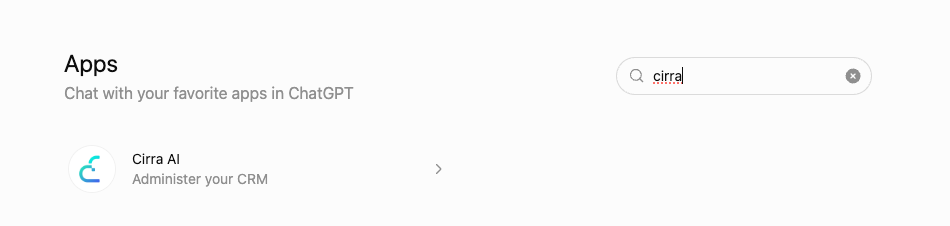
ChatGPT on the web: Go to https://chatgpt.com/apps and search for Cirra AI.
-
ChatGPT desktop app: open Settings, click Apps in the left sidebar, then click Browse apps and search for Cirra AI.
-
-
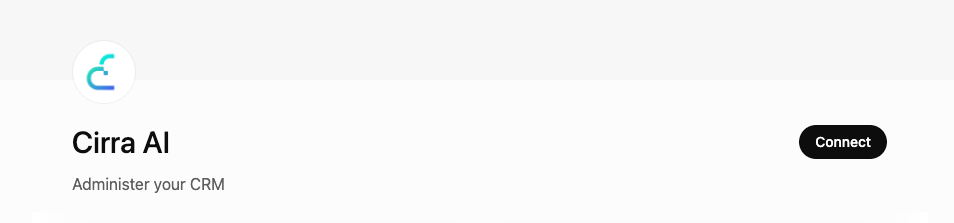
Connect
On the Cirra AI app page, click Connect.
-
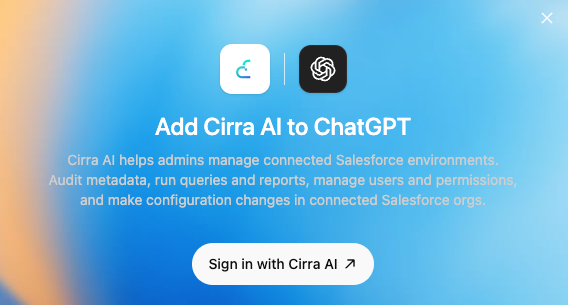
Sign in with Cirra AI
In the dialog that appears, click Sign in with Cirra AI, then complete the sign-in and click Allow Access to authorize ChatGPT (see Access rights and security for what this grants).
If ChatGPT is unavailable or behaving unexpectedly, check https://status.openai.com/.
OpenAI Codex
-
Open OpenAI Codex MCP Servers tab
Open OpenAI Codex and navigate to Settings → MCP servers.
-
Add the Cirra AI MCP Server
-
Click Add MCP server
-
Select Streamable HTTP as the transport type
-
Enter the following details:
-
Name:
Cirra AI -
URL:
https://mcp.cirra.ai/mcp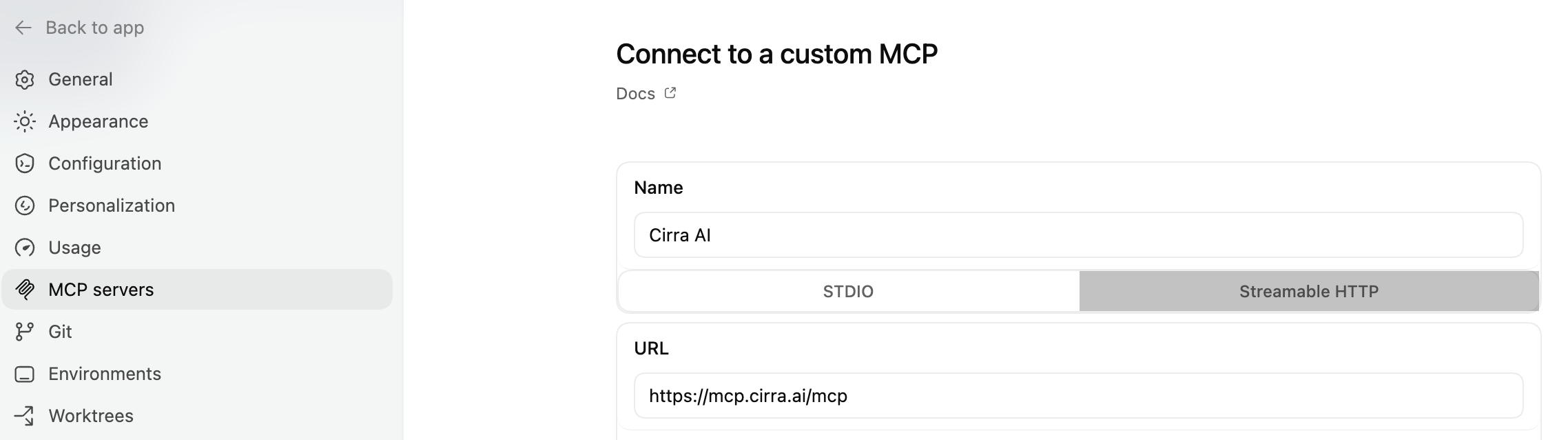
-
-
Click Save to add the server
-
If OpenAI Codex is unavailable or behaving unexpectedly, check https://status.openai.com/.
VS Code
GitHub Copilot required: MCP servers in VS Code require access to GitHub Copilot.
Learn about using MCP servers in VS Code.
To add the Cirra AI MCP server:
-
Click Open Visual Studio Code
-
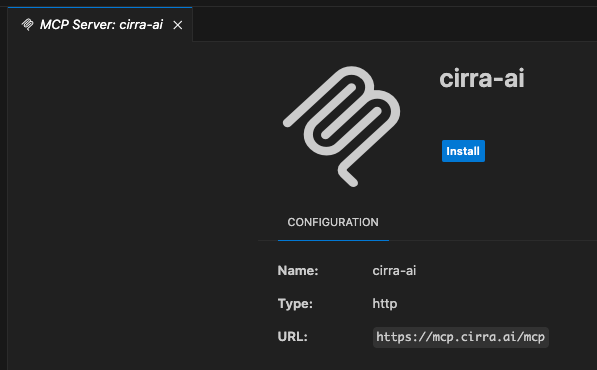
You should see the installation screen
-
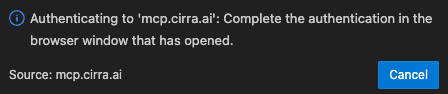
Click Install This should open an "Authenticating" dialog in the bottom right corner of the IDE
-
If the authentication page does not appear in your browser after a few seconds, click Cancel
In the "URL Handler" dialog that appears, click Yes
-
Click Open to open the authorization page in your web browser
If the automated installation link does not work, or your situation is more custom, follow the steps under Add an MCP server in the VS Code doc.
-
If you use the MCP: Add Server command from the Command Palette the data to enter is:
- Type:
HTTP(or "Add from another application" if you have already configured Cursor or Claude Desktop) - URL: https://mcp.cirra.ai/mcp
- Server ID:
cirra-ai
- Type:
-
Alternatively, if you create an
mcp.jsonfile in your workspace or user config, use the following configuration:"cirra-ai": {"type": "http","url": "https://mcp.cirra.ai/mcp"}
Then follow the authentication steps shown above.
You may need to restart VSCode or click Restart in the setup page.
Cursor
Cursor subscription required: A Cursor subscription is required to use MCP servers.
Click the button below to add the MCP Server to Cursor:


If that does not work refer to the Cursor MCP documentation.
-
You will need to add the Cirra AI server configuration to
mcp.json. There are two possible locations for this file:- Project Configuration
Create the file in
.cursor/mcp.jsonin your project - Global Configuration
Create the file in
~/.cursor/mcp.jsonin your home directory
- Project Configuration
Create the file in
-
The server configuration for Cirra AI is:
"cirra-ai": {"url": "https://mcp.cirra.ai/mcp",}
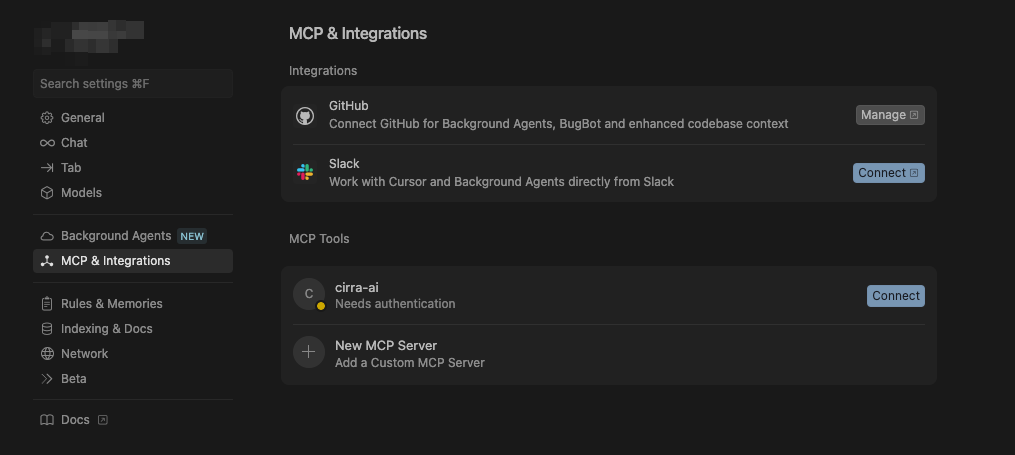
To finish the connection, open the Cursor settings and click Connect next to the Cirra AI server
If Cursor is unavailable or behaving unexpectedly, check https://status.cursor.com/.
Cline
-
Open the Remote Servers tab
In Cline, navigate to the Remote Servers tab (also called MCP Servers depending on your version).
-
Add the Cirra AI MCP Server
- Enter the server URL:
https://mcp.cirra.ai/mcp - Select Streamable HTTP as the transport type
- Enter the server URL:
-
Authenticate
After adding the server, you will see an error message with an Authenticate button. Click it to open the sign-in page in your browser.
-
Sign in using your Cirra AI account and you will be automatically redirected back to Cline.
Gemini Enterprise
Gemini Enterprise connects to Cirra AI as a custom MCP server data store. Setup has two parts:
- A Google Cloud administrator registers Cirra AI as an OAuth client and creates the data store (one-time, per Gemini Enterprise app). This is covered in steps 1-6 below.
- Each end user authorizes their own Cirra AI account from the Gemini Enterprise chat before using Salesforce actions. Once the admin setup is done, send end users directly to step 7, Authorize Cirra AI in Gemini Enterprise chat.
The steps below follow Google Cloud's custom MCP server data store setup instructions, with the Cirra AI-specific values filled in.
1. Before you begin
- A Cirra AI account with access to the required Salesforce organization.
- A Gemini Enterprise app and a Google Cloud project where you can create data stores.
- The Discovery Engine Editor role (
roles/discoveryengine.editor) for the administrator performing setup. - Your organization policy must allow custom MCP server data stores — Google disables this feature by default.
- Google Identity configured for the same Gemini Enterprise location in which the connector will be created.
These steps use Google Identity. The Workforce Pool Viewer role is not required. Organizations using a third-party identity provider should follow Google's Workforce Identity Federation instructions instead.
2. Register Gemini Enterprise as an OAuth client
Gemini Enterprise requires a client ID and client secret. Register a confidential OAuth client with Cirra AI before opening the connector form.
Open a terminal and run the following command, replacing Your Company with your organization name:
curl -sS -X POST https://mcp.cirra.ai/register \
  -H 'Content-Type: application/json' \
  -d '{
    "client_name": "Gemini Enterprise - Your Company",
    "redirect_uris": [
      "https://vertexaisearch.cloud.google.com/oauth-redirect"
    ],
    "grant_types": ["authorization_code", "refresh_token"],
    "response_types": ["code"],
    "token_endpoint_auth_method": "client_secret_basic"
  }'
Copy client_id and client_secret from the JSON response and save them securely. The client secret is displayed only during registration — treat it like a password.
Do not email, paste into tickets, or store the client secret in shared documents. Do not reuse OAuth credentials from another Cirra AI integration — use only the client_id and client_secret returned by the registration request above.
3. Create the custom MCP server data store
- Open Gemini Enterprise in Google Cloud and navigate to Data stores.
- Select Create data store, search for Custom MCP Server, and choose Add MCP server.
- Select OAuth 2.0 authentication and enter the values below exactly.
| Gemini field | Value |
|---|---|
| MCP Server URL | https://mcp.cirra.ai/mcp |
| Authorization URL | https://mcp.cirra.ai/authorize |
| Authorization URL Parameters | &resource=https://mcp.cirra.ai |
| Token URL | https://mcp.cirra.ai/token |
| Client ID | client_id returned by the registration request |
| Client Secret | client_secret returned by the registration request |
| Scopes | openid email profile offline_access |
| Enable PKCE Support | Checked |
- Select Login and complete the Cirra AI sign-in and consent flow. After login succeeds, continue to the advanced configuration.
4. Describe how Gemini should use Cirra AI
MCP Server Description — copy this into the corresponding field:
Connects Gemini Enterprise to Salesforce through Cirra AI. Use it to query and manage Salesforce data, metadata, Apex, Flows, permissions, and related CRM operations using natural language.
MCP Agent Instructions — copy this into the corresponding field:
Use this server for requests involving Salesforce records, configuration, metadata, automation, permissions, Apex, or Flows. Prefer read-only tools when the user is asking a question or investigating an issue. Before any create, update, delete, deployment, or other state-changing operation, explain the intended change and obtain explicit user confirmation. Never invent record IDs, object names, field names, or query results. If required information is missing, inspect the Salesforce schema or ask the user. Summarize tool results clearly and mention errors, partial results, or assumptions. Never expose credentials or access tokens.
5. Configure identity and connector settings
-
Configure Google Identity. In Gemini Enterprise, open Settings > Authentication. Select the edit icon for the location where the connector will be created — typically global — choose Google Identity, and save.
noteThe red "You don't have permissions to fetch Workforce Pools" message does not prevent the Google Identity setup and does not require the Workforce Pool Viewer role.
-
Return to connector creation. Reload the page if needed, then use the same location selected for Google Identity.
-
Name the connector. Use "Cirra AI" or "Cirra AI Salesforce." The generated connector ID cannot be changed later.
-
Leave Sensitive data protection policy blank, unless your organization has already created a Google Sensitive Data Protection content policy and requires it for this connector.
-
Create the data store and wait until its status changes to Active.
6. Enable Cirra AI actions
Gemini Enterprise imports MCP tools as actions, but actions are disabled by default.
- Open the Cirra AI data store and go to Actions. Select Reload custom actions if Gemini requests reauthentication.
- Enable the Salesforce actions your users need. Gemini Enterprise supports up to 100 enabled actions per custom MCP server data store.
Enable only the actions your users need. Salesforce permissions and Cirra AI authorization continue to govern the records and operations available to each user.
7. Authorize Cirra AI in Gemini Enterprise chat
The administrator setup above makes Cirra AI available. Each user still completes a final authorization from the Gemini Enterprise chat before using Salesforce actions.
-
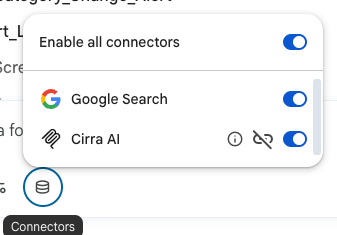
Open the Connectors menu. In the Gemini Enterprise chat, select the database-shaped Connectors icon.
-
Enable Cirra AI. Turn on Enable all connectors and the Cirra AI toggle if they are not already enabled.
-
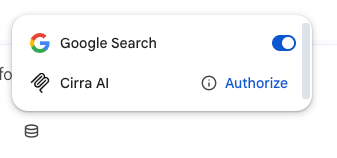
Select Authorize. Follow the Cirra AI sign-in and consent prompts, then return to the Gemini Enterprise chat.
-
Test the connection. Ask Gemini a read-only Salesforce question, such as "Show me my recently modified Salesforce accounts." Gemini should select an enabled Cirra AI action and may ask for confirmation.
Gemini Enterprise troubleshooting
| Symptom | Resolution |
|---|---|
| Invalid redirect URI | Register a new client using exactly https://vertexaisearch.cloud.google.com/oauth-redirect. |
| OAuth or PKCE error | Confirm Enable PKCE Support is checked and Authorization URL Parameters contains &resource=https://mcp.cirra.ai. |
| Connector is visible but no actions are available | Wait for the data store to become Active, reload custom actions, and explicitly enable the required actions. |
| A user cannot see or use the app | Confirm the app and connector are shared with that user and that the user has the Gemini Enterprise User role (roles/discoveryengine.agentspaceUser). |
| Workforce Pools warning | For the Google Identity path in this guide, Workforce Pool Viewer is not required. |
Other MCP Clients
For other MCP-compatible clients that support OAuth:
General Configuration
- Server URL:
https://mcp.cirra.ai/mcp - Protocol: HTTP/MCP
- Authentication: OAuth (using your Cirra AI credentials)
Setup Steps
- Sign up for a Cirra AI account if you haven't already at https://cirra.ai/free-trial
- Check your client's MCP documentation for specific setup instructions
- Add the Cirra AI MCP server using the URL above
- Test the connection to ensure it's working
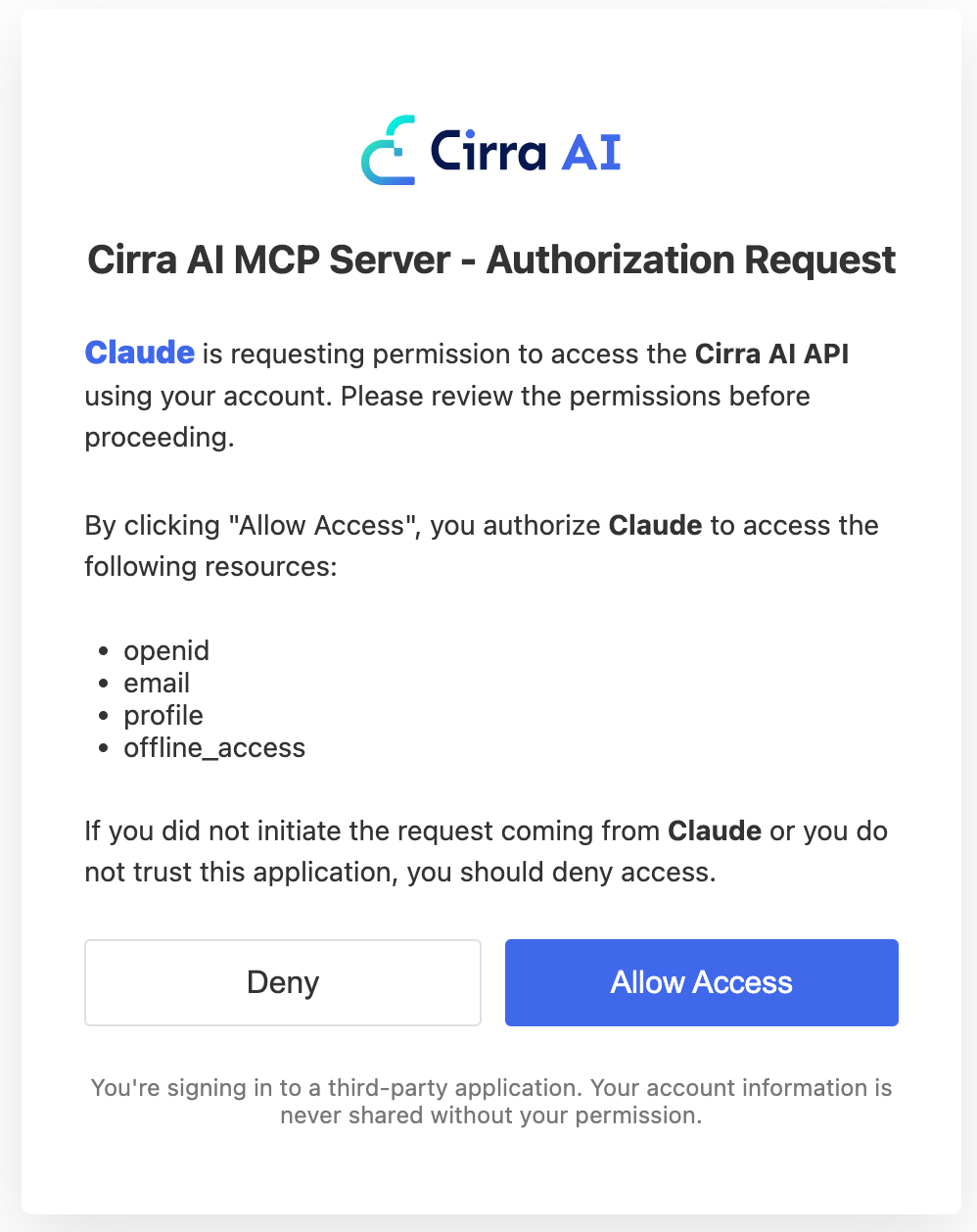
After connecting the MCP Server to your AI client, you should see an authorization request in a new tab in your browser (it may be hidden behind other windows if authorizing from an IDE or desktop app).
-
Click "Allow Access" to authorize the connection
-
Then log in using your Cirra AI account (see Setting Up if you do not have one yet)
After successful login you will be redirected back to your AI client, or in some cases you may see a confirmation dialog.
The final step is to verify your setup
We recommend installing the Cirra AI skills to get the most out of the MCP server. Skills are free to use and significantly improve the quality and consistency of AI-generated Salesforce work.
Need Help?
If your client isn't listed or you need assistance, please check our support documentation for ways to get in touch with us.